
If you are an account administrator, you will often face situations where an employee or team member has forgotten their email password. Since they cannot log in to Webmail to reset it themselves, you must do it for them via the control panel.
This guide explains how to force a password reset for any email account on your domain.
Step 1: Access the Email Accounts Menu
-
Log in to your cPanel dashboard.
-
Scroll down to the Email section.
-
Click on Email Accounts.
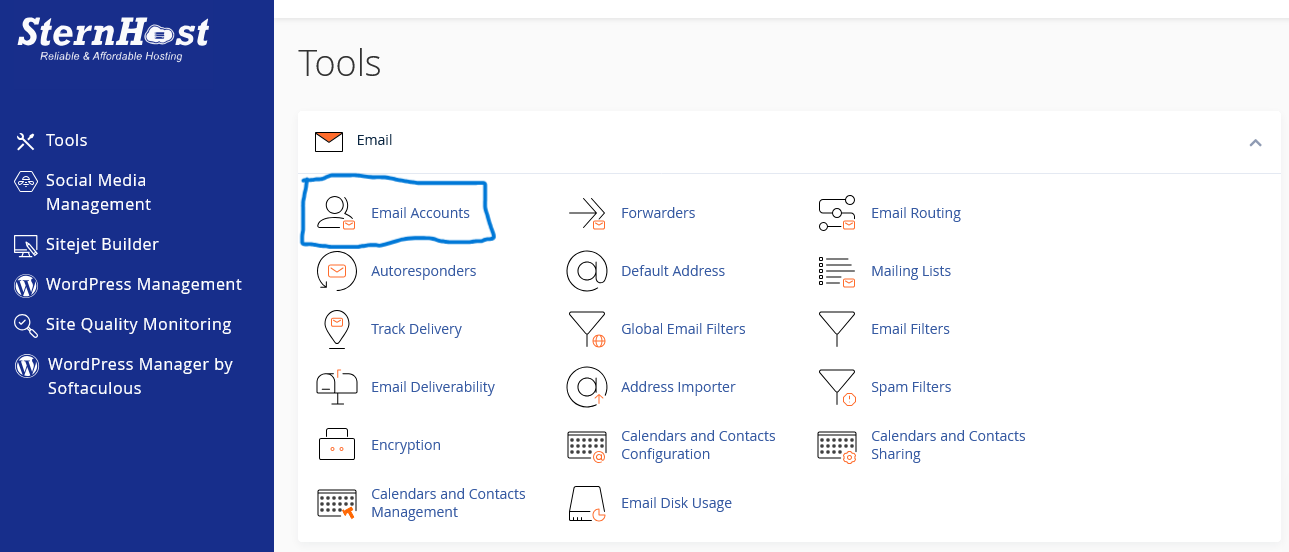
Step 2: Locate the Account
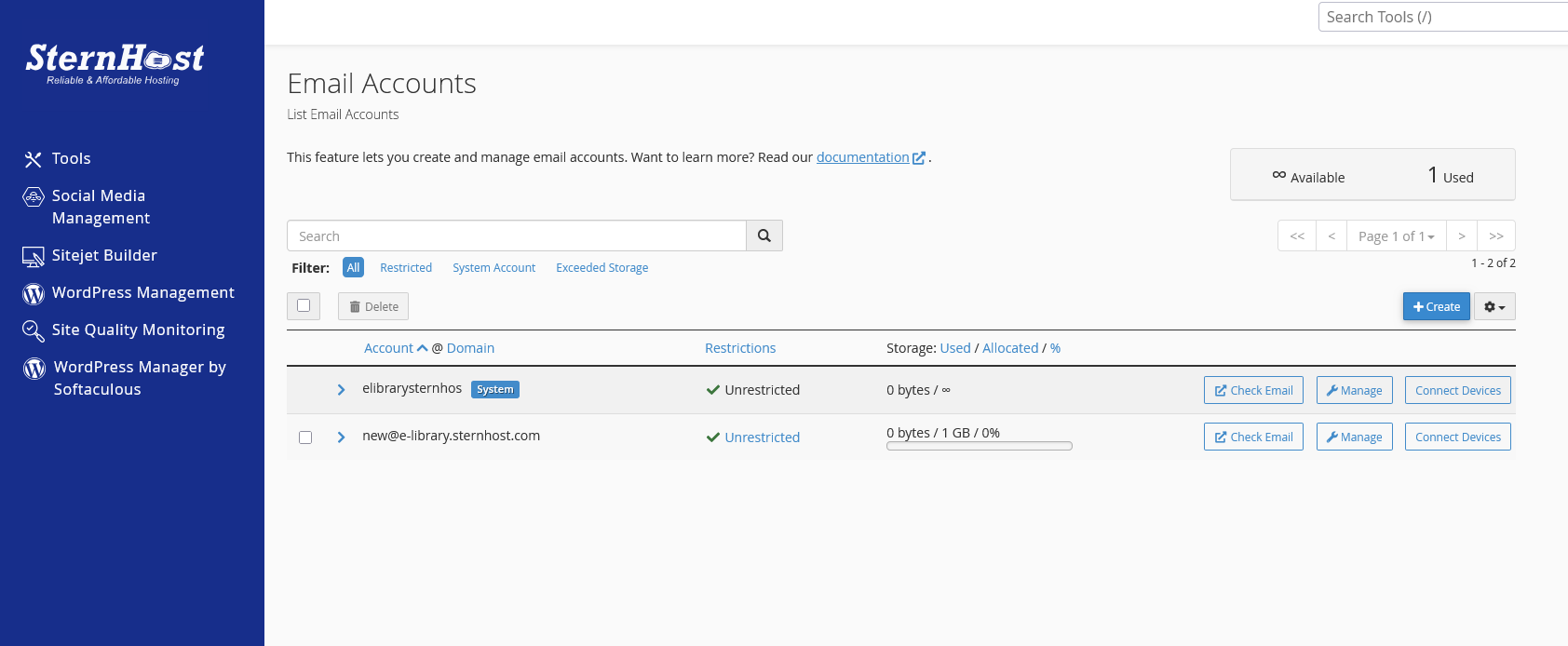
You will see a list of all email addresses created for your domain.
-
Scroll through the list or use the search bar to find the specific email address (e.g.,
sales@yourdomain.com). -
Click the Manage button to the right of that email address.
Step 3: Set the New Password
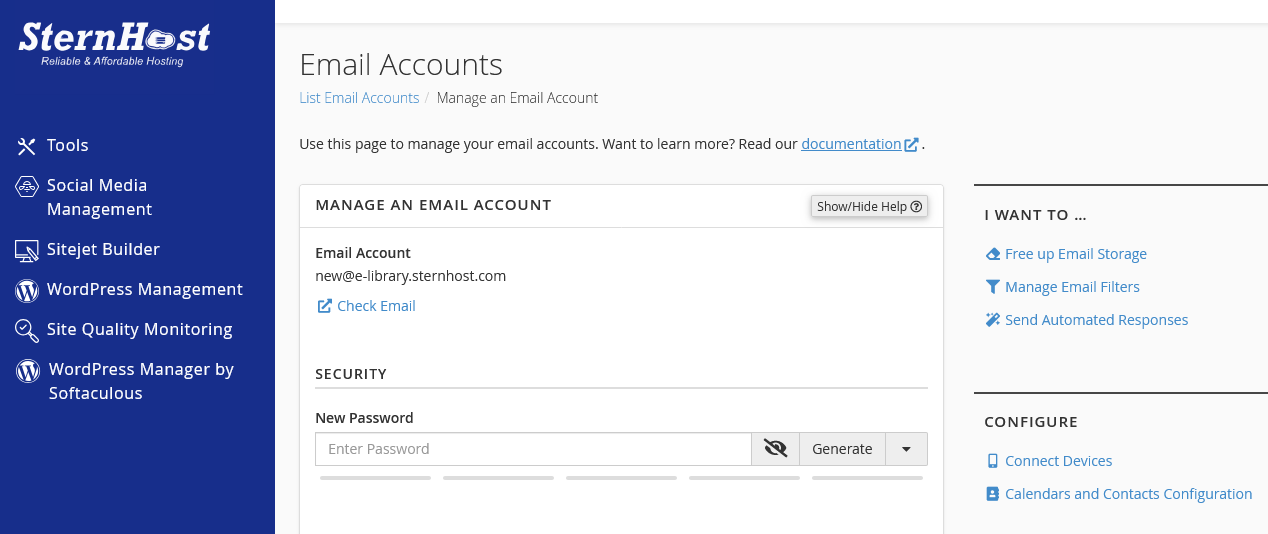
You do not need the old password to make this change.
-
Locate the "New Password" text field at the top of the settings page.
-
Enter a new, strong password.
-
Recommendation: Click the Generate button to create a secure, random password instantly.
-
-
Click the eye icon to reveal the password and copy it so you can send it to the user.
Step 4: Save Changes
-
Scroll to the very bottom of the page.
-
Click the blue Update Email Settings button.
Important Next Steps
Once you see the success message "Success: You managed the email account...", the password change is immediate.
-
Notify the User: Send the new password to the user securely.
-
Update Devices: The user must update the password on their phone, Outlook, or other email clients immediately, or they may be temporarily blocked by the server for "failed login attempts."


