
If you or your staff stop receiving emails and senders get a "Mailbox Quota Exceeded" bounce-back message, it usually means the email account is full.
Instead of deleting old emails to make space, you can simply increase the storage limit (Quota) assigned to that account in cPanel.
Step 1: Check Current Usage
-
Log in to your cPanel dashboard.
-
Go to Email Accounts.
-
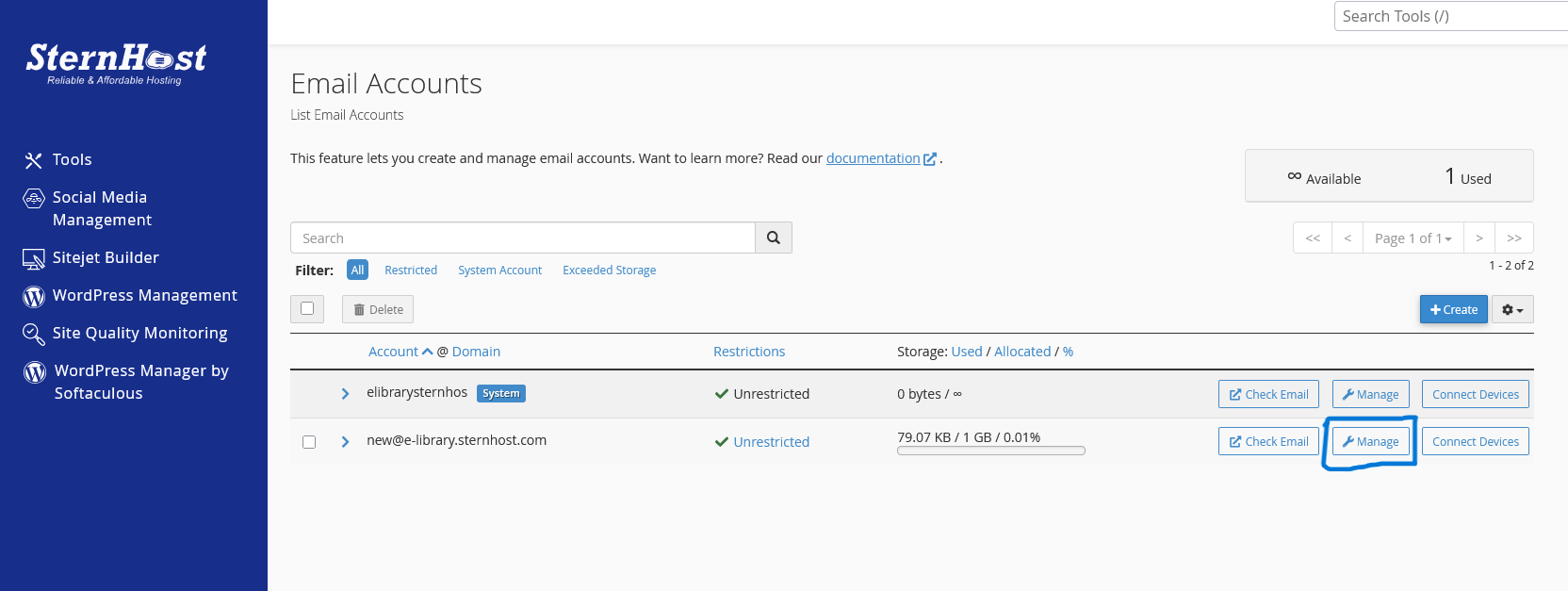
Look at the Storage column next to your email addresses.
-
If the bar is red or shows "100%," the account is full.
-
If it shows "Unlimited," the account is only limited by your total hosting plan storage.
-
Step 2: Access Account Settings
-
Locate the email account that is full.
-
Click the Manage button to the right of that account.
Step 3: Increase the Quota
-
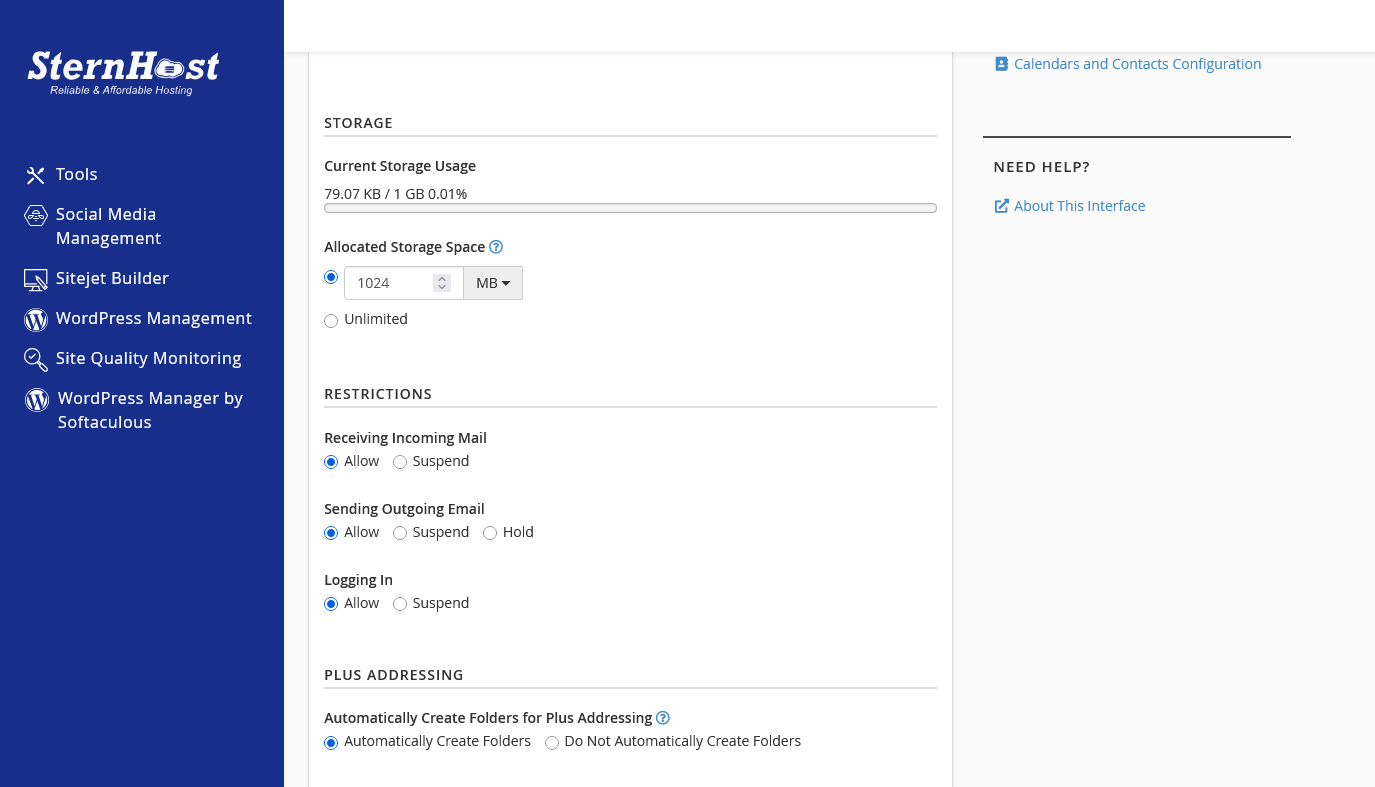
Scroll down to the Storage section.
-
You will see the current allocation (e.g., 250 MB or 1 GB).
-
To Increase: Enter a larger number (e.g., change 1024 MB to 2048 MB).
-
To Remove Limits: Select the Unlimited radio button.
-
Note: "Unlimited" is safer for important accounts like CEOs or General Support, provided your main hosting plan has enough disk space.
-
Step 4: Save
Scroll down and click Update Email Settings. The change is instant, and the account will immediately start receiving emails again.


