
If you are planning to purchase a premium SSL certificate (for example, to display a verified company name or for higher warranty insurance), you cannot simply buy it and install it. First, you must generate a Certificate Signing Request (CSR) on your server. This guide explains how to create that code within SternHost’s cPanel.
What is a CSR?
A CSR is an encrypted block of text that acts as an application form for a digital certificate. It contains information about your business and the domain name you wish to secure. When you buy an SSL from a third-party provider (like DigiCert, GeoTrust, or Comodo), they will ask you to "paste your CSR" to validate your order.
Step-by-Step Guide
Follow these steps to generate your CSR code:
-
Log in to cPanel Access your cPanel dashboard.
-
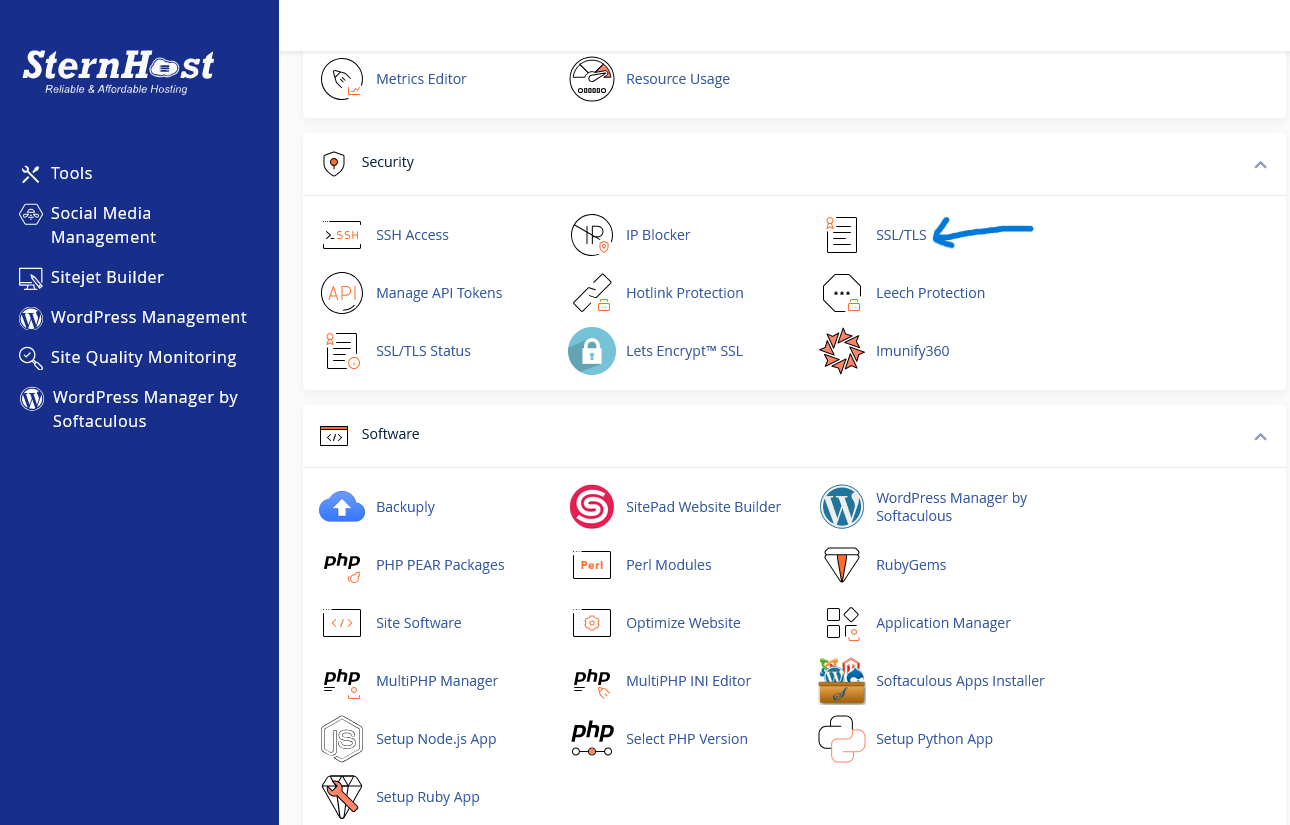
Navigate to the SSL/TLS Manager Scroll down to the Security section and click on the SSL/TLS icon.
-
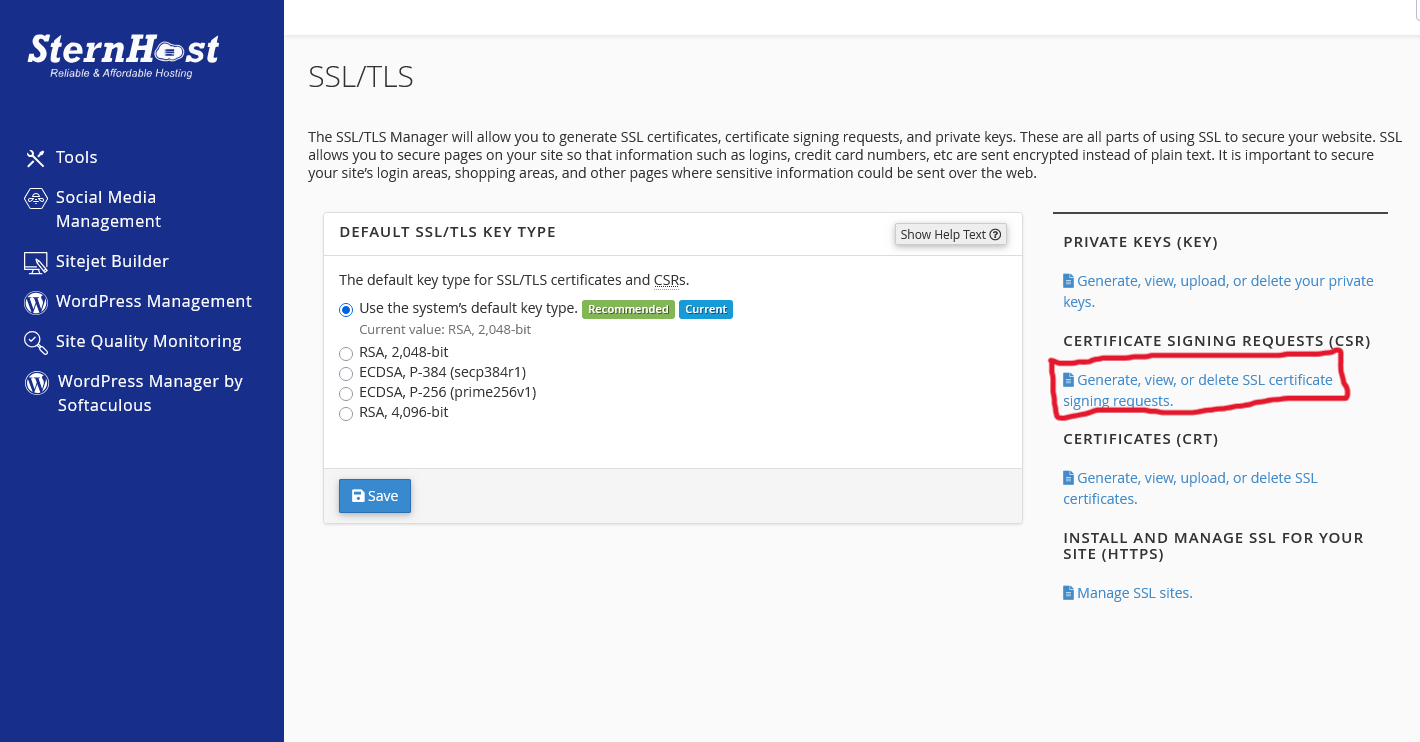
Select "Certificate Signing Requests (CSR)" Look for the link that says "Generate, view, or delete SSL certificate signing requests" and click it.
-
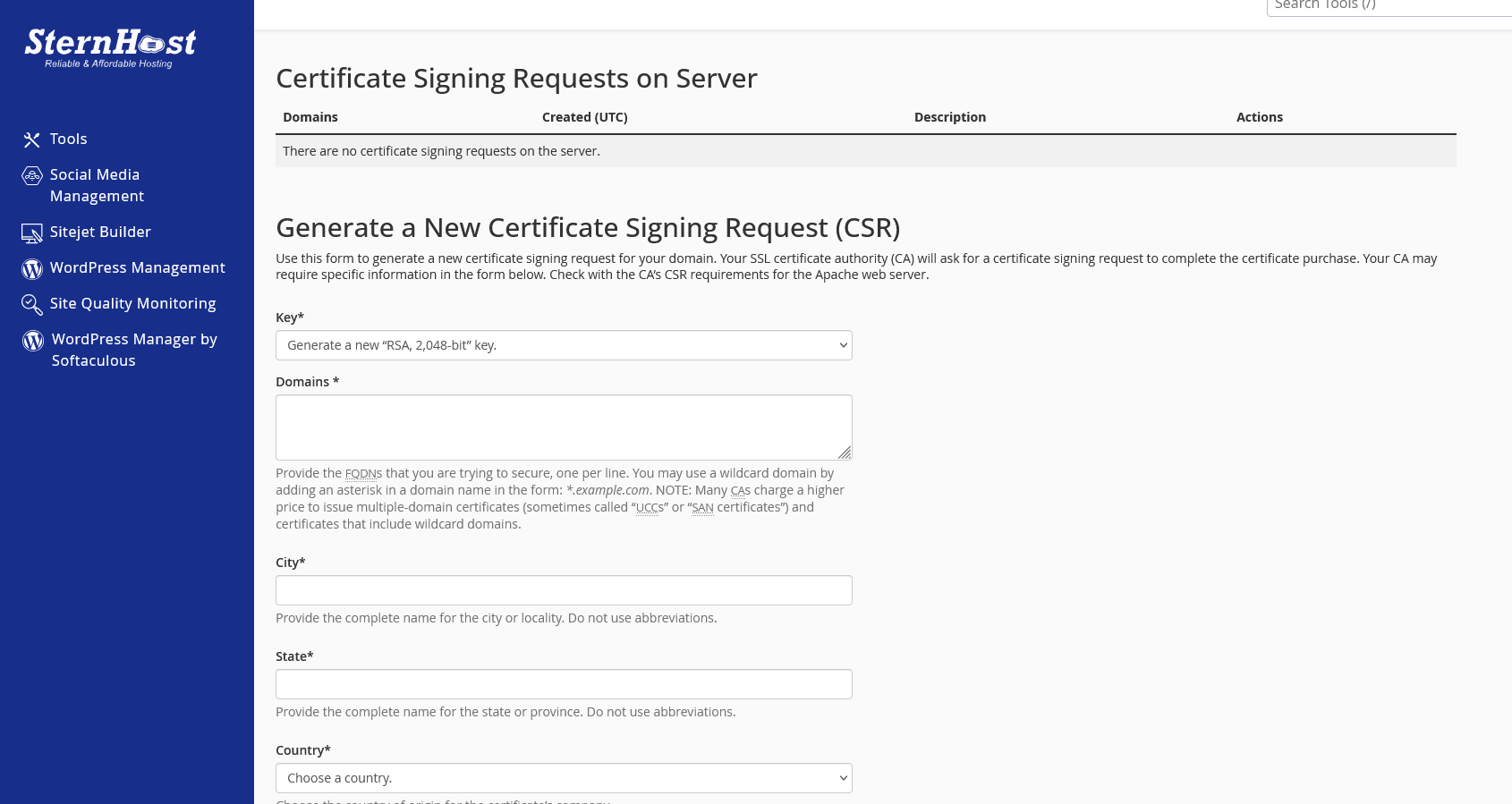
Fill in the Required Information You will be asked to provide details about your domain and organization. It is important to match these details exactly with your legal business documents:
-
Key: Leave this at the default 2,048-bit.
-
Domains: Enter the exact domain name you want to secure (e.g.,
www.yourdomain.com). If you are buying a Wildcard SSL, you would enter*.yourdomain.com. -
City, State, and Country: These fields must be filled out completely. Do not use abbreviations (e.g., use "Lagos" instead of "Lag").
-
Company: Enter the legal name of your business.
-
Generate the Code Once the form is filled, click the Generate button at the bottom of the page.
What To Do Next
After clicking generate, cPanel will show you a block of encoded text starting with -----BEGIN CERTIFICATE REQUEST-----.
Copy this entire block of text (including the BEGIN and END lines) and paste it into the order form provided by the company where you are purchasing your SSL certificate. Once they issue the certificate, you can proceed to install it using our "Installing a Third-Party SSL Certificate" guide.


