
Unlike domain names, which renew automatically with a payment, third-party SSL certificates (from providers like Comodo, GeoTrust, or DigiCert) require manual re-installation when they expire. You cannot simply "extend" the date; you must replace the old certificate file with a new one.
When Should You Renew?
Most Certificate Authorities (CAs) recommend renewing your certificate 30 days before it expires. This prevents any downtime where your site might show a security warning to visitors. If your certificate has already expired, your site is currently showing a "Not Secure" error, and you must complete this process immediately.
Step-by-Step Guide
Follow this process to update your expired certificate with a new one:
-
Purchase the Renewal Go to the vendor where you originally bought the SSL (or purchase a new one from SternHost) and pay for the renewal.
-
Validate the Domain Just like when you first bought it, the vendor will ask you to validate that you own the domain. This is usually done by clicking a link sent to an email address like
admin@yourdomain.comor adding a specific CNAME record to your DNS. -
Receive the New Certificate Files Once validated, the vendor will email you a new
.crtfile (the certificate) and a "CA Bundle" file. Download these or keep the email open. -
Log in to cPanel Access your SternHost cPanel dashboard.
-
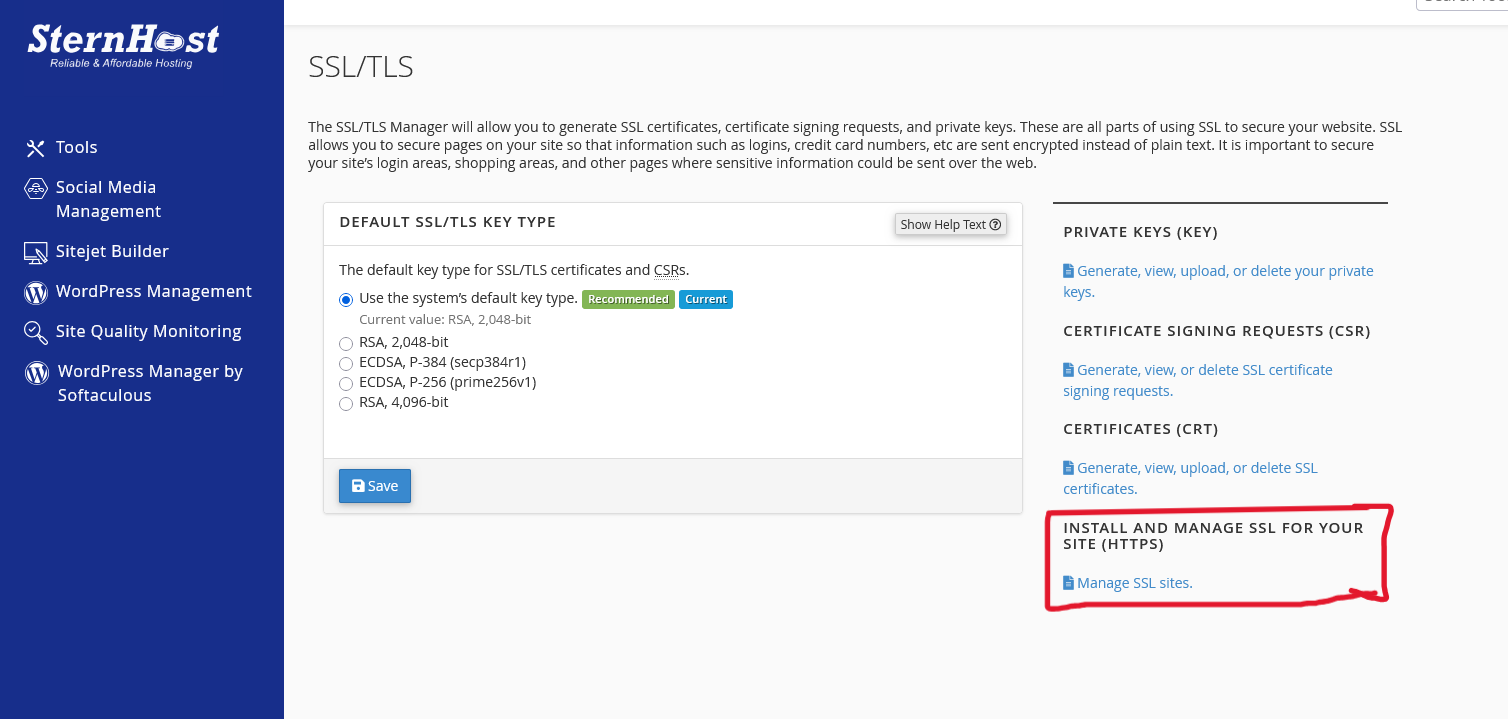
Navigate to SSL/TLS Scroll to the Security section and click SSL/TLS.
-
Select "Install and Manage SSL for your site (HTTPS)" Click the link that says Manage SSL Sites.
-
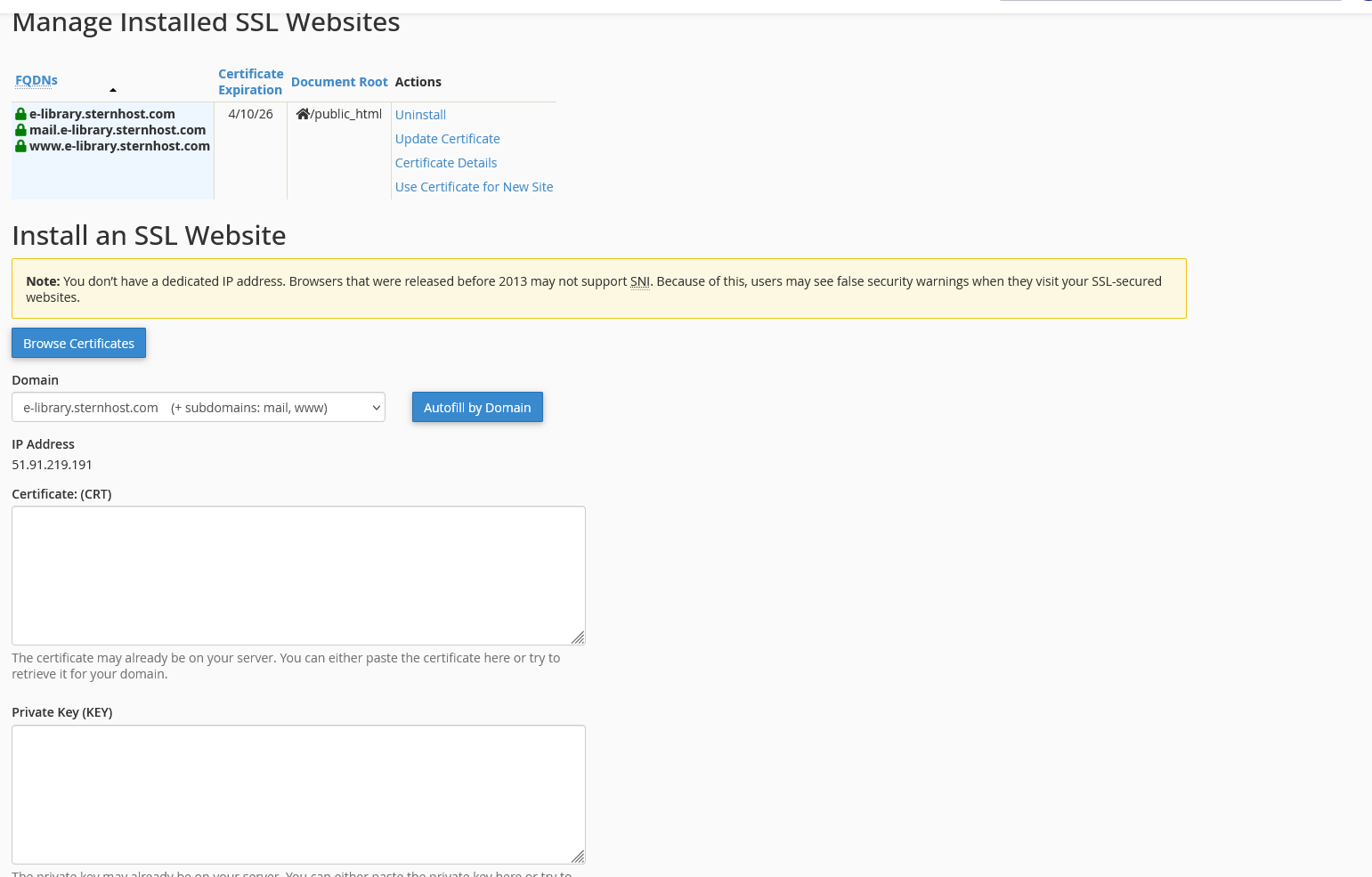
Update the Certificate Scroll down to the list of installed certificates.
-
Find the domain that is expiring.
-
Click Update Certificate (or "Browse Certificates").
-
Paste the new CRT code you received from the vendor into the "Certificate: (CRT)" box.
-
The system should automatically fetch the matching Private Key (KEY) if it was generated on this server.
-
Paste the new "CA Bundle" code if provided.
-
Click "Install Certificate" Once the new codes are pasted, click the Install Certificate button. You will see a success message confirming the new expiration date.


