
Gzip compression works like a ZIP file for your website. When a visitor requests a page, the server compresses the files into a smaller package before sending them. The visitor's browser then unzips them automatically. This results in much faster "First Contentful Paint" times and significantly lower bandwidth usage for your hosting account.
Enabling Compression in One Step
Unlike other performance tweaks, cPanel has a built-in tool that handles the entire configuration for you without needing to edit code or install plugins.
-
Log in to your Sternhost cPanel account.
-
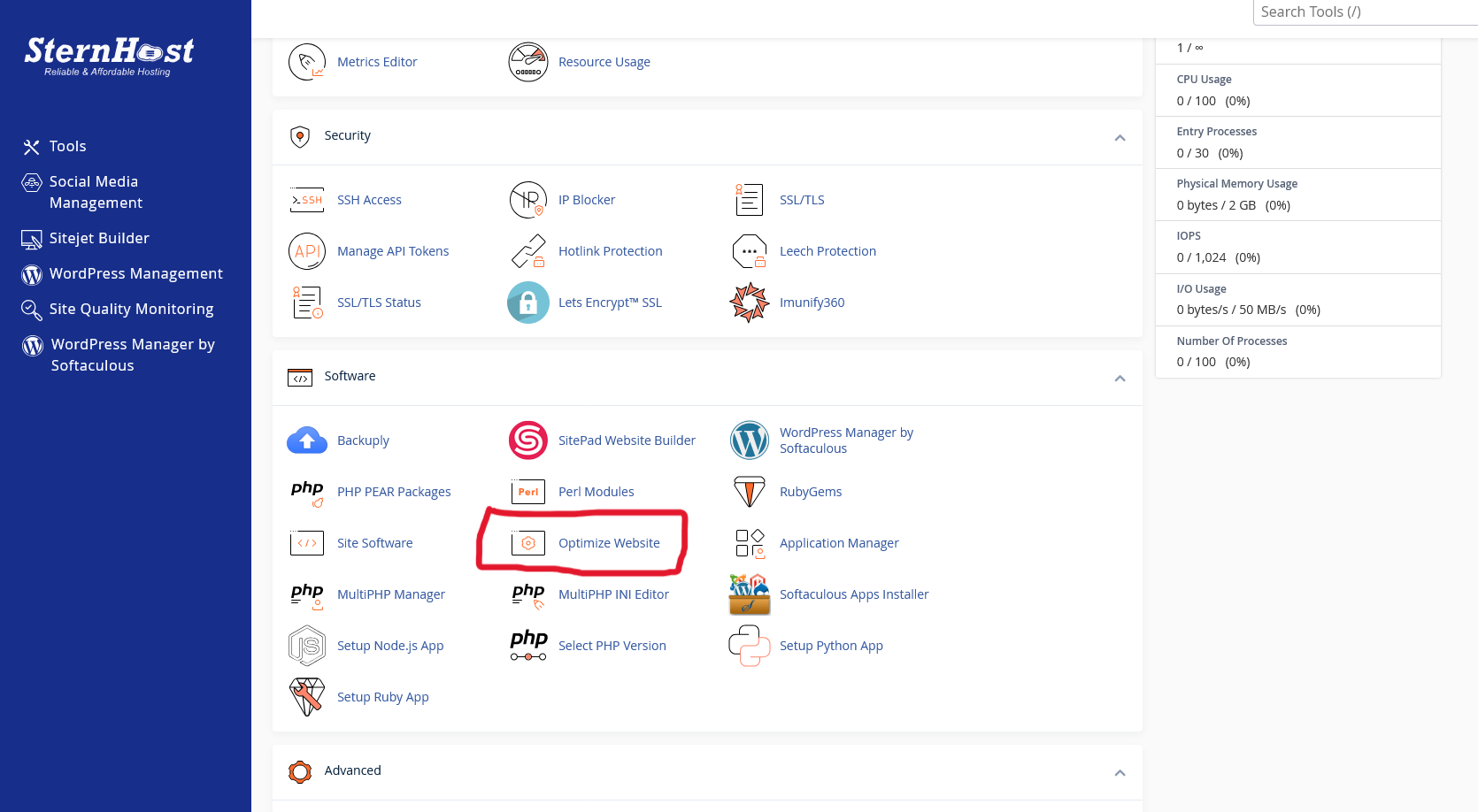
Scroll down to the Software section and click on Optimize Website.
-
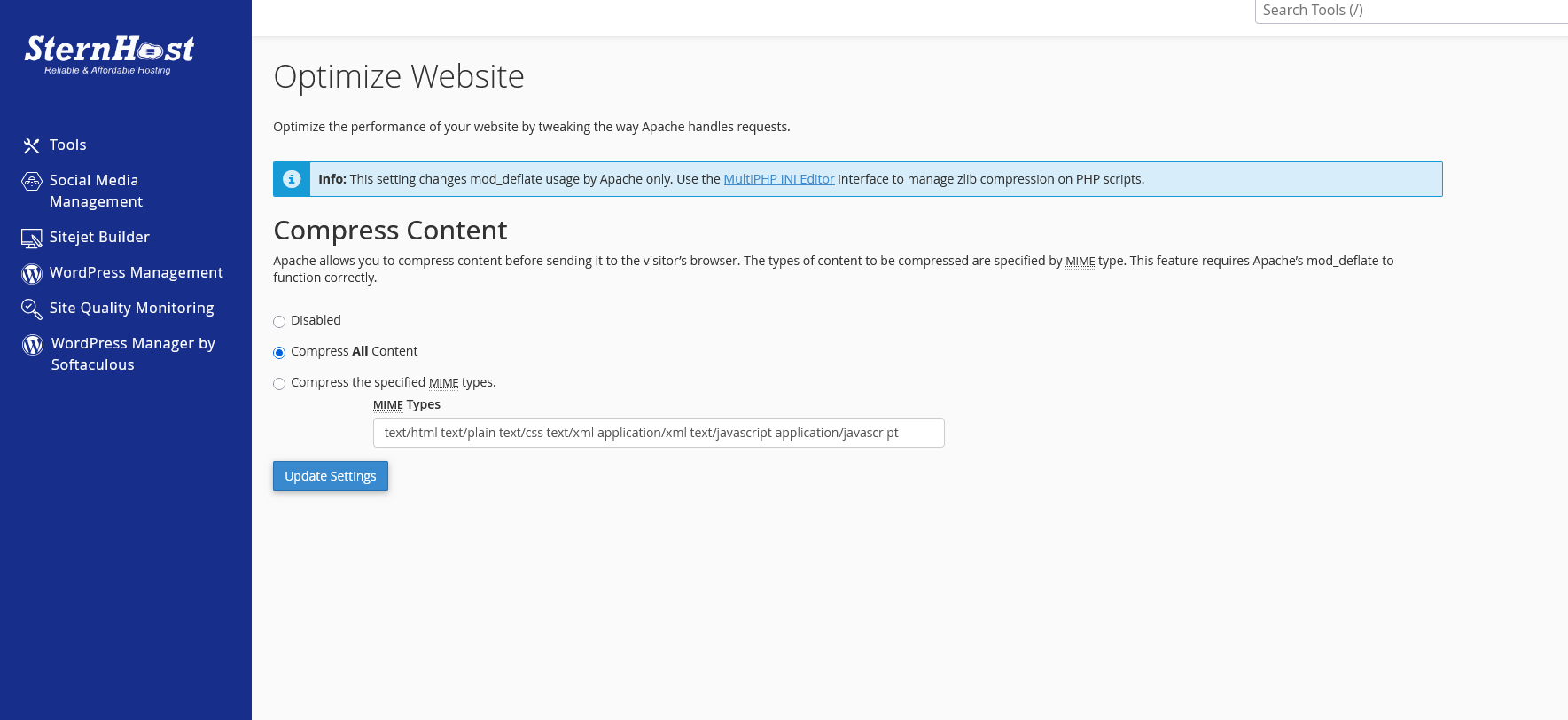
Under the Compress Content heading, select the option: Compress All Content.
-
Click the Update Settings button.
Why "Compress All Content" is Best
-
HTML, CSS, and JS: These text-based files are highly compressible and see the most significant speed gains.
-
Automated Handling: cPanel automatically updates your server's
.htaccessfile with the necessary rules so you don't have to manually manage file types. -
Global Compatibility: Gzip is a universal web standard supported by every modern browser (Chrome, Safari, Firefox, and Edge).
How to Verify It Is Working
Once you click update, the compression is active immediately. You can verify this by using a free online tool like GTmetrix or the GiftOfSpeed Gzip Compression Test. Simply enter your URL, and the tool will confirm if the "Content-Encoding: gzip" header is present.
Note: Gzip does not compress images (like JPG or PNG) because those files are already compressed. For those, we recommend referring to our existing guide on How to Optimize Images for Faster Website Loading.


