
Because Sternhost servers are powered by high-performance LiteSpeed technology, your hosting account includes a built-in server-level caching tool. This tool works independently of your WordPress plugins to store dynamic pages, significantly reducing the time it takes for your server to respond to visitor requests.
If you recently made changes to your website—such as updating a theme, modifying CSS, or publishing a new post—and the changes are not reflecting, clearing the LiteSpeed cache from your cPanel is the most effective way to force the server to serve the freshest content.
Step 1: Locating the Cache Manager
You can access this powerful caching tool directly from your hosting dashboard without needing to log into your WordPress admin area.
-
Log in to your Sternhost cPanel account.
-
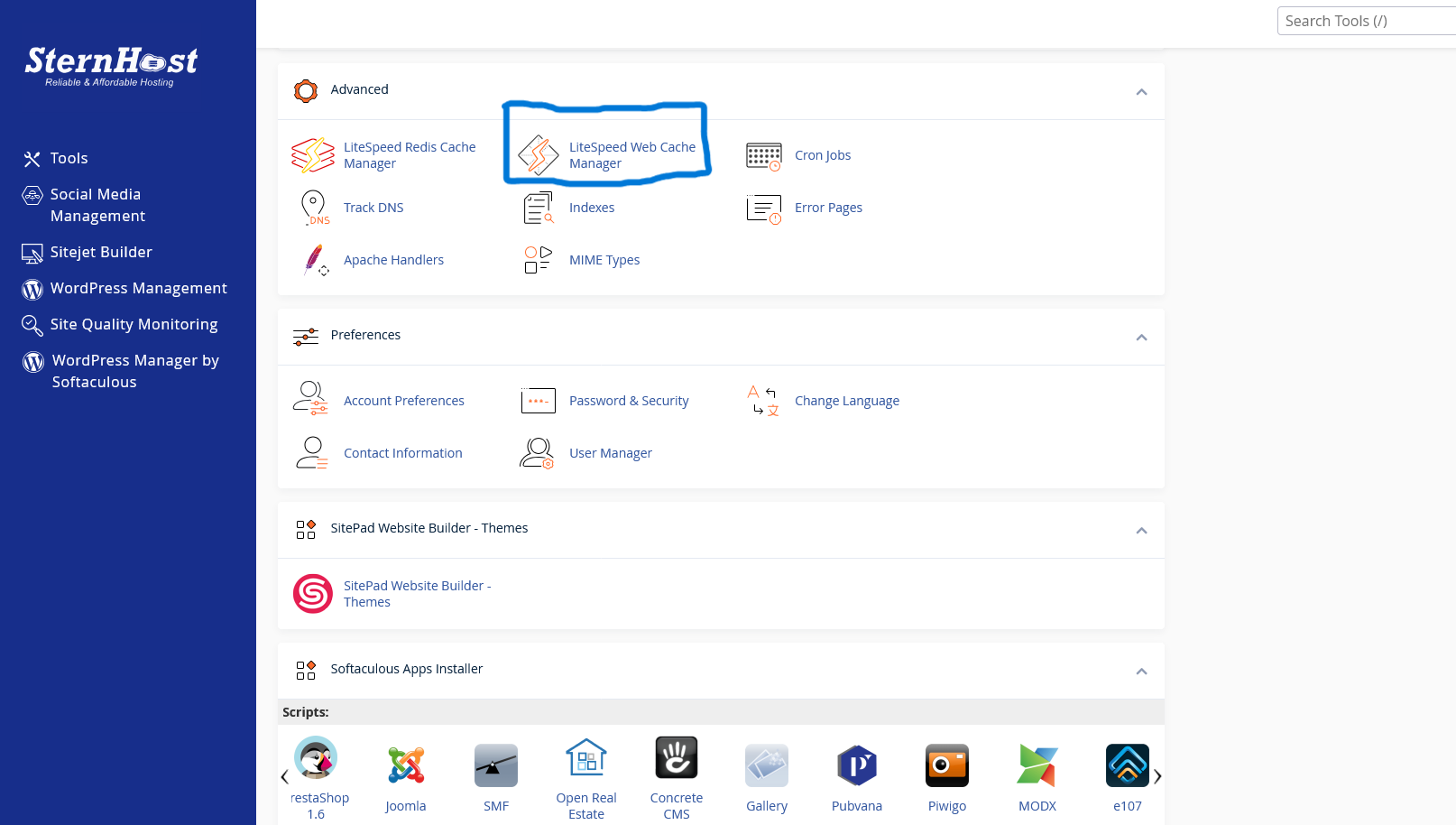
Scroll down to the Advanced section.
-
Click on the LiteSpeed Web Cache Manager icon.
Step 2: Flushing the LSCache
Once you are inside the Cache Manager interface, clearing the cache takes just a few clicks.
-
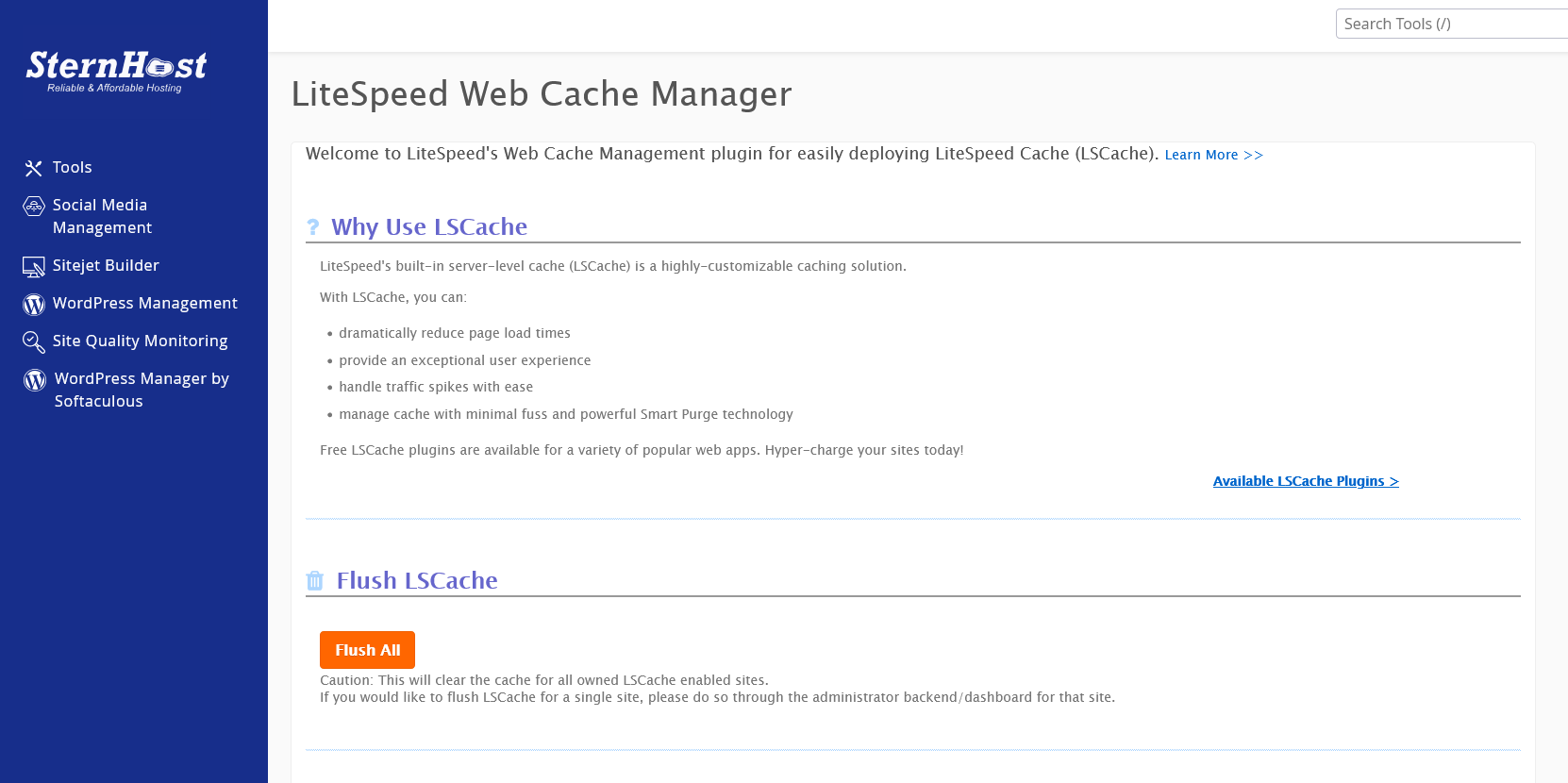
Scroll down to the Flush LSCache section.
-
Click the button labeled 'Flush All'.
-
A confirmation prompt will appear. Click 'OK' to execute the purge.
Why Server-Level Caching is Superior
-
Faster Execution: Because the caching happens at the server level, it bypasses PHP and database queries entirely, delivering pages much faster than application-level plugins.
-
Lower Resource Usage: Serving cached files via LiteSpeed consumes far less CPU and RAM, keeping your hosting account running smoothly even during traffic spikes.
-
Seamless Integration: It works perfectly with the LiteSpeed Cache plugin for WordPress, ensuring optimal performance across both the server and the application.


