
Running a WooCommerce store is exciting. With thousands of plugins available, it’s tempting to install every cool feature you see—from gamified pop-ups to complex inventory trackers. But here is the hard truth: not all plugins are safe.
Installing a poorly coded plugin is like putting low-quality fuel in a high-performance sports car. It doesn’t matter how fast your engine is (or how powerful your SternHost NVMe SSD server is); if the fuel is bad, the car will sputter.
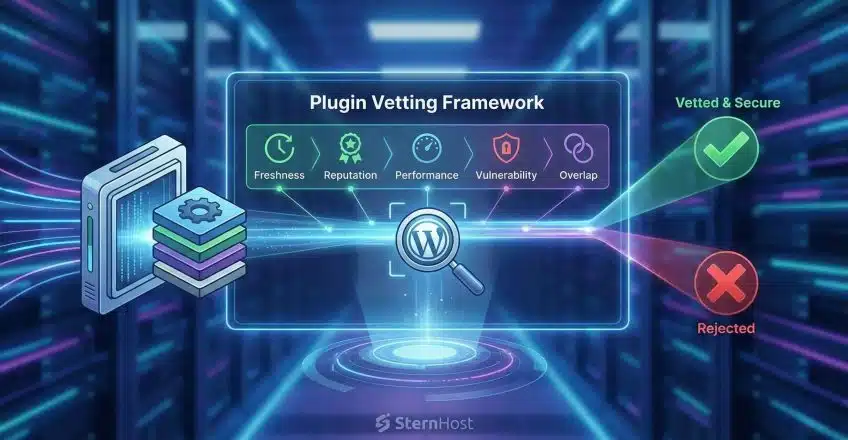
Instead of waiting for a plugin to break your site, successful store owners use a “vetting process” before they ever click Install. In this guide, we are flipping the script on the usual “warning signs” lists. Instead, we are giving you a proactive, 5-step framework to ensure you only choose safe WooCommerce plugins that protect your store’s security and speed.
Step 1: The “Freshness” Factor
Before you even look at the features, look at the timeline. The WordPress and WooCommerce ecosystems move fast. A plugin that hasn’t been updated in six months is a relic; one that hasn’t been updated in a year is a potential security risk.
The Audit Check:
-
Last Updated: Ideally, within the last 3 months.
-
WordPress/WooCommerce Compatibility: Does the developer explicitly state it works with the current version of WooCommerce?
-
The “Abandonment” Check: Visit the plugin’s support forum on WordPress.org. If the last 10 threads have zero replies from the developer, the project is likely abandoned. Steer clear.
Step 2: The Reputation Deep Dive (Beyond the Stars)
A 5-star rating is good, but it can be misleading. A plugin might have five stars because it worked great in 2021, but it could be broken today. To find truly safe WooCommerce plugins, you need to read the content of the reviews, not just count the stars.
The Audit Check:
-
Filter by “Newest”: Read the reviews from the last 30 days. Are people complaining about a specific bug introduced in the latest update?
-
Look for “Bloat” keywords: specific complaints like “slowed down my site” or “conflicted with my theme” are major red flags.
-
The Support Response: For premium plugins, check their presales questions. Do they reply helpfully and quickly? This is a preview of the help you’ll get when things go wrong.
Step 3: The Performance Impact Test
This is the step most store owners skip. A plugin might add a cool feature, but at what cost to your load time? Speed is a ranking factor for Google and a conversion factor for shoppers. A “safe” plugin isn’t just secure; it’s also performance-safe.
The Audit Check:
-
Check the File Size: While not a perfect metric, a simple “Add to Cart” button change shouldn’t require a 5MB plugin.
-
The Query Monitor Test: If you have a staging site (which you can easily set up on SternHost), install the Query Monitor plugin alongside the new plugin. It will show you if the new plugin is making slow database queries or hogging memory.
-
Frontend Check: Does the plugin load scripts on every single page of your site, or only where it’s needed? Good plugins are efficient; bad ones load their code everywhere, slowing down your homepage unnecessarily.
Step 4: The Vulnerability Scan
Security breaches often happen through outdated or poorly coded plugins. You don’t need to be a hacker to check this; you just need to know where to look to ensure you’re using safe WooCommerce plugins.
The Audit Check:
-
Database Search: Run the plugin name through a vulnerability database like Patchstack or WPScan. If the plugin has a history of critical vulnerabilities that took weeks to patch, it shows a lack of security hygiene by the developers.
-
Source Verification: Never download “Nulled” (pirated) versions of premium plugins. These almost always contain malware that can hijack your customer data. Only download from the official repository or the developer’s site.
Step 5: The “Feature Overlap” Rule
The biggest cause of a slow WooCommerce site is often redundancy. You don’t need three different plugins that all do SEO, or two different plugins handling your image optimization.
The Audit Check:
-
Ask yourself: “Does my theme or my hosting already do this?”
-
Example: You don’t need a heavy caching plugin if you are hosting with SternHost, where we provide server-side caching and optimization tools built specifically for high-performance WordPress sites.
-
Consolidate: If you can find one reputable plugin that does the job of three smaller ones, the single plugin is often the better choice for reducing code conflicts.
Conclusion: A Solid Foundation Matters
Following this 5-step guide will help you build a stack of safe WooCommerce plugins, keeping your software clean and secure. But remember, software is only half the battle. Even the most optimized set of plugins needs a robust, secure hosting environment to run smoothly.
At SternHost, we specialize in optimized WooCommerce hosting that provides the speed and security your vetted plugins deserve. Don’t let your hard work go to waste on a slow server.
Also you can read: How to Harden Server Security by Disabling Unused Services