

A Simple Website Backup Strategy: How the 3-2-1 Rule Protects Your Business
Most small business owners only think about backups on the worst day: the site is hacked, a plugin update breaks the checkout, or someone deletes the wrong folder. That's when you find out whether you have a real website backup strategy or just a hope that "the host keeps something."
This guide explains the 3-2-1 rule, the simplest backup plan that actually holds up, and shows how to apply it to a small business website in an afternoon. By the end you'll know what to back up, where to keep it and how to prove you can restore it.
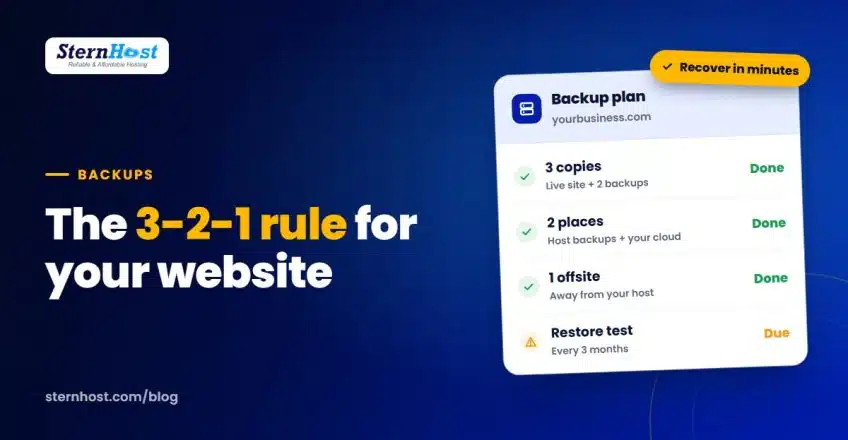
Quick answer: keep 3 copies of your website (the live site plus two backups), on 2 different kinds of storage, with 1 copy offsite, away from your hosting company. Then test a restore every few months.
What the 3-2-1 rule means
The rule comes from IT teams, but it scales down neatly to a five-page website or a small online store. The US Cybersecurity and Infrastructure Security Agency lists it as a core step in its guidance on backing up business data.
| Part | What it means for a website | Why it matters |
|---|---|---|
| 3 copies | Your live site, plus two backups | If one backup is corrupt, you still have another |
| 2 types of storage | For example, your host's backup system and a cloud drive | One failure (or one account problem) can't take out everything |
| 1 offsite | A copy stored with a different company or location | If your hosting account is hacked or suspended, your backup survives |
The key idea: a backup stored in the same place as the website isn't enough on its own. If an attacker gets into your hosting account, or you lose access to it, anything kept only inside that account goes with it.
What you actually need to back up
A website is two things, and you need both:
- Files: your theme, plugins, images, uploads and configuration files.
- The database: your pages, posts, products, orders, customer accounts and settings. On WordPress, this is where almost everything you typed lives.
Also keep a short "rebuild sheet" somewhere safe (a password manager or a shared document):
- Where your domain is registered and when it renews
- Your DNS settings (or a screenshot of them)
- Admin logins for the website, hosting and email
- Any license keys for paid themes or plugins
Backups restore your website. The rebuild sheet restores your ability to use those backups quickly.
Building your website backup strategy, step by step
Step 1: Copy one, your host's automatic backups
Start with what your hosting already does. SternHost shared hosting includes automated daily backups with JetBackup, which you can restore from inside cPanel. Our guide on how to back up and restore in cPanel walks through it.
Check two things with any host: how often backups run, and whether you can restore them yourself without waiting for support. Daily is the minimum for a site that changes often, such as a store or a blog.
Step 2: Copy two, a backup you control
Next, keep a copy that isn't managed by your host. Two easy options:
- Download a full backup from cPanel once a month (or before big changes). See how to create a full website backup in cPanel.
- Use a backup plugin (on WordPress, tools such as UpdraftPlus can send backups to Google Drive, Dropbox or OneDrive on a schedule).
Step 3: Copy three, offsite and automatic
Make sure at least one of those copies lands outside your hosting account: a cloud drive, an S3-compatible storage bucket, or both. Automate it so it doesn't depend on someone remembering. If you're comfortable with a little setup, we have a guide to automating cloud backups to S3-compatible storage.
Step 4: Decide how long to keep backups
Keep a mix of recent and older copies, for example:
- Daily backups for the last 7–14 days
- Weekly backups for the last month or two
- Monthly backups for the last 6–12 months
Older copies matter more than people expect. Malware often sits quietly for weeks before anyone notices, and every recent backup may already contain it.
How often should a small business back up?
Match the schedule to how much you'd lose:
| Type of site | Suggested schedule |
|---|---|
| Brochure site that rarely changes | Weekly, plus before every update |
| Blog posting several times a week | Daily |
| Online store or booking site | Daily at least, and before every plugin or theme update |
| Membership site with constant sign-ups | Several times a day if possible |
A simple test: how many hours of orders, bookings or posts could you afford to re-enter by hand? Back up more often than that.
Test your restores, or you don't have backups
A backup you've never restored is a guess. Every three months, do a test:
- Pick a recent backup from your offsite copy (not just your host's).
- Restore it to a staging site or a subdomain, not over your live site.
- Check that pages load, images appear, logins work and the latest orders or posts are there.
- Note how long it took. That's your real recovery time.
If the restore fails or something is missing, you've found the problem on a calm day instead of during an emergency.
Common backup mistakes to avoid
- Only relying on the host. Good host backups are copy one, not the whole plan.
- Backing up files but not the database (or the other way round).
- Keeping backups only on your laptop. Laptops get lost, stolen and damaged.
- No older copies. If every backup is from the last three days, a slow-burning hack may have infected them all.
- Never testing. Corrupt or incomplete backups are more common than you'd think.
- Forgetting email. If your business email lives on your hosting, include it, or keep important mail in a separate archive.
Frequently asked questions
What is the best website backup strategy for a small business?
The 3-2-1 rule: three copies, on two kinds of storage, with one offsite. In practice that means your host's automatic daily backups, plus an automated copy to a cloud drive or storage bucket you control, plus a restore test every few months.
Aren't my hosting company's backups enough?
They're an important first copy, but they live in the same place as your website. If your hosting account is compromised, suspended or deleted, you could lose both. An offsite copy you control removes that risk.
How long does it take to restore a website from a backup?
For a typical small business site, a restore from cPanel or JetBackup usually takes minutes. Restoring from an offsite copy takes longer because files must be uploaded first, which is why you should time it during your test restores.
Do I need to back up a site that rarely changes?
Yes, but less often. Back up weekly and always before updating WordPress, plugins or themes, since updates are one of the most common reasons sites break.
Start with backups that run themselves
The easiest website backup strategy is one where copy one happens without you lifting a finger. Every SternHost plan includes automated daily backups with JetBackup that you can restore yourself in cPanel, plus free SSL and malware protection. Add an offsite copy using the steps above and you're covered by the 3-2-1 rule.
Get web hosting with daily backups from $1/month, and set up your offsite copy this week while everything is still working.