
Article Summary: One of the most important steps in managing a website is maintaining regular backups. Whether you are updating a plugin, modifying code, or moving to a new server, having a recent backup ensures you can restore your site if something goes wrong. This guide shows you how to generate a full backup of your account using the cPanel Backup Wizard.
Why Create a Backup?
While Sternhost maintains server-wide backups, creating your own manual backup provides immediate peace of mind. You should create a backup before:
-
Updating WordPress themes or plugins.
-
Making major changes to your website code.
-
Migrating your account to a new server.
Step-by-Step Guide
1. Log in to cPanel Access your Sternhost cPanel dashboard. (If you need help logging in, please refer to our guide: How to Log in to Your cPanel Dashboard).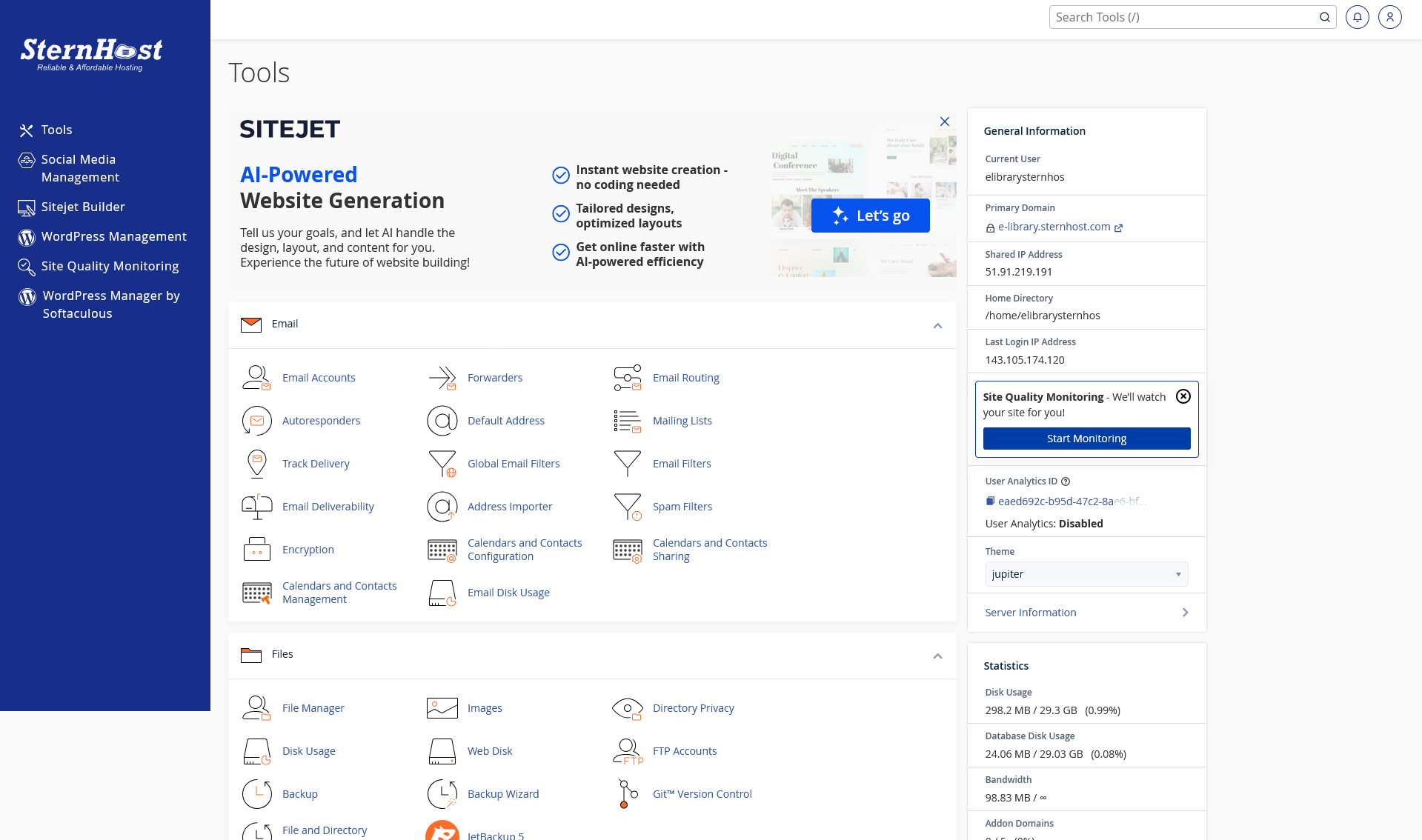
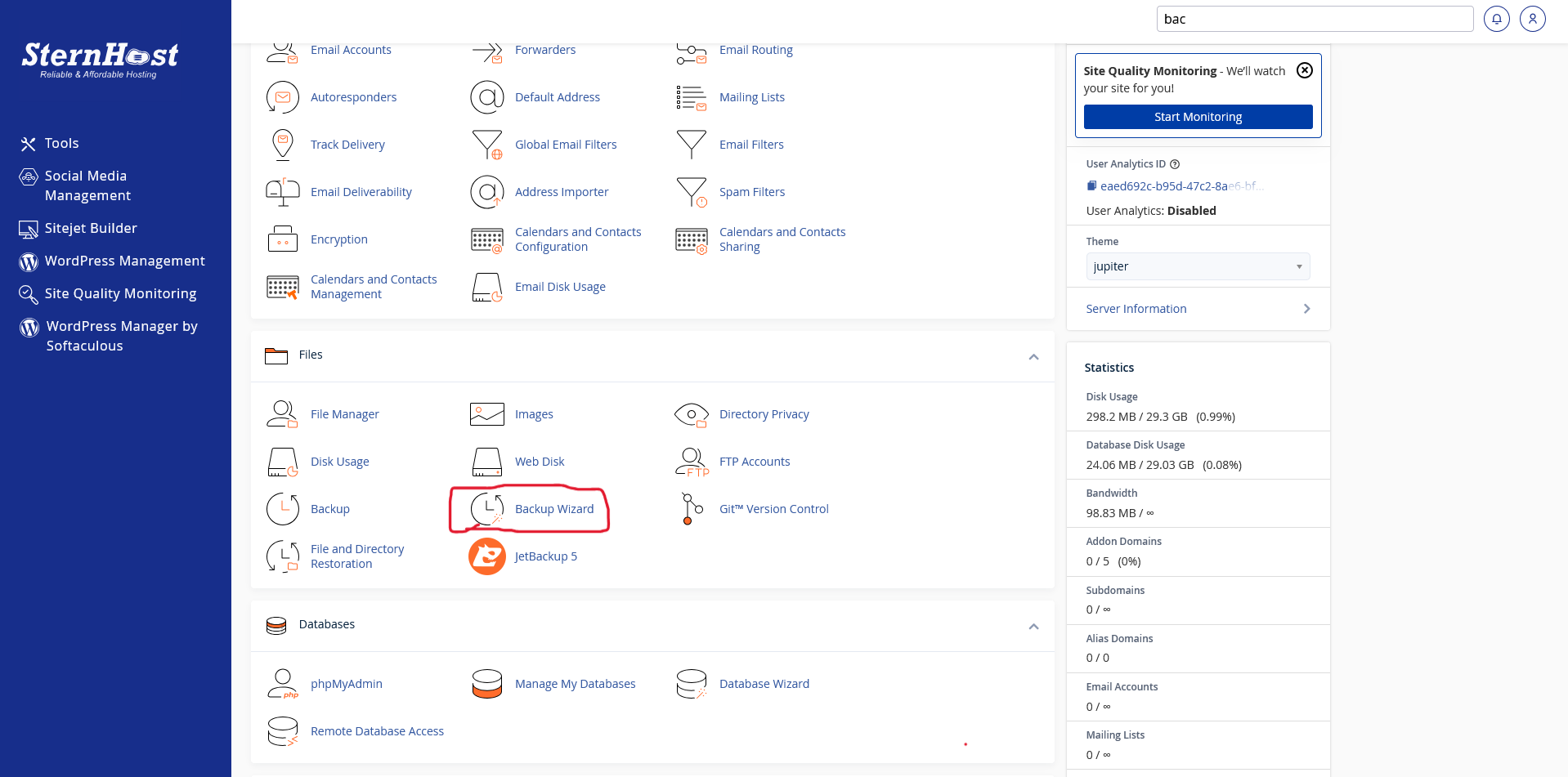
2. Navigate to the Backup Wizard Scroll down to the Files section and click on the icon labeled Backup Wizard. (Note: You can also use the standard "Backup" icon, but the Wizard is more user-friendly).
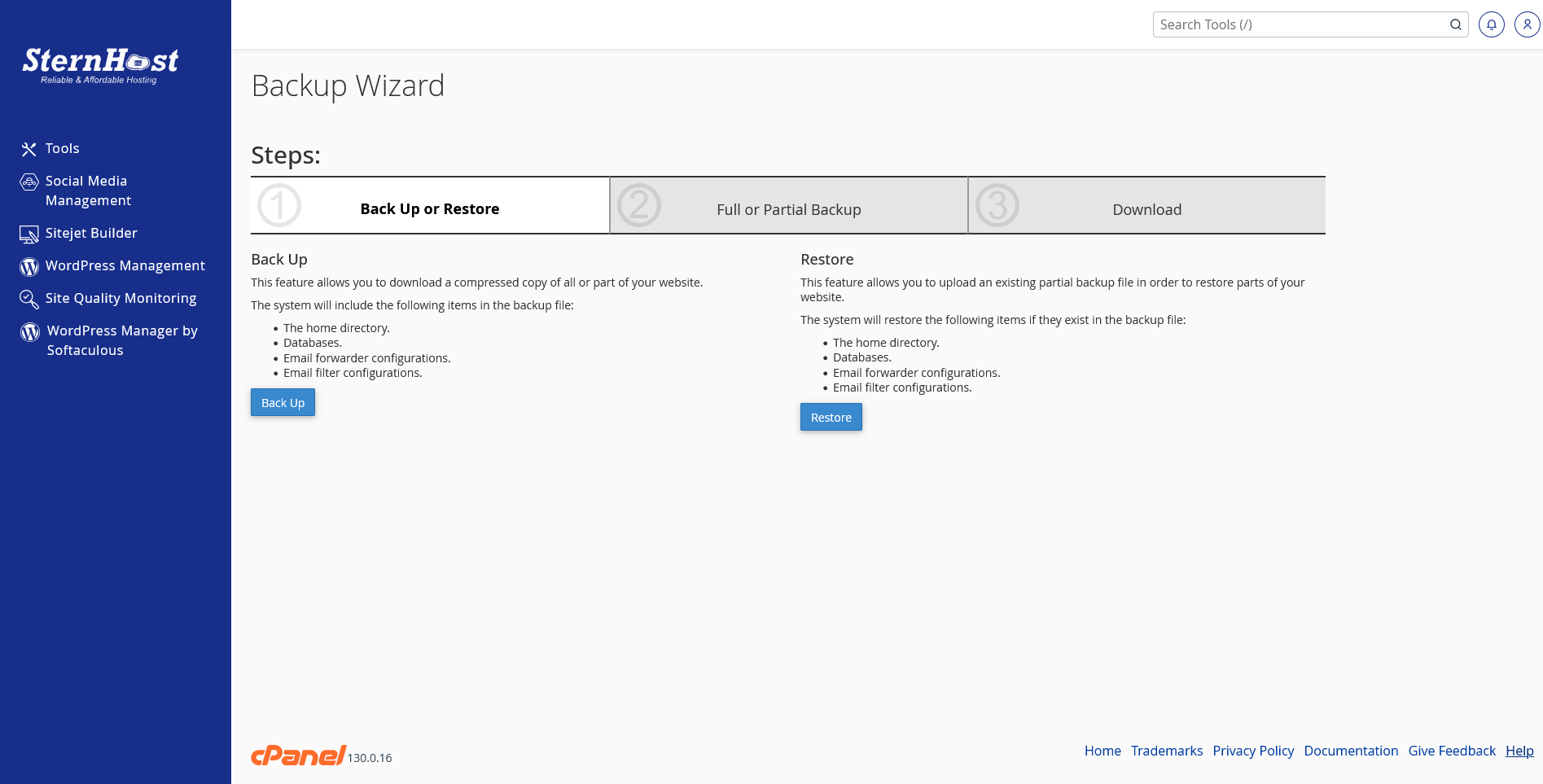
3. Select "Back Up" On the Backup Wizard screen, you will see two options: "Back Up" and "Restore." Click the blue Back Up button on the left side.
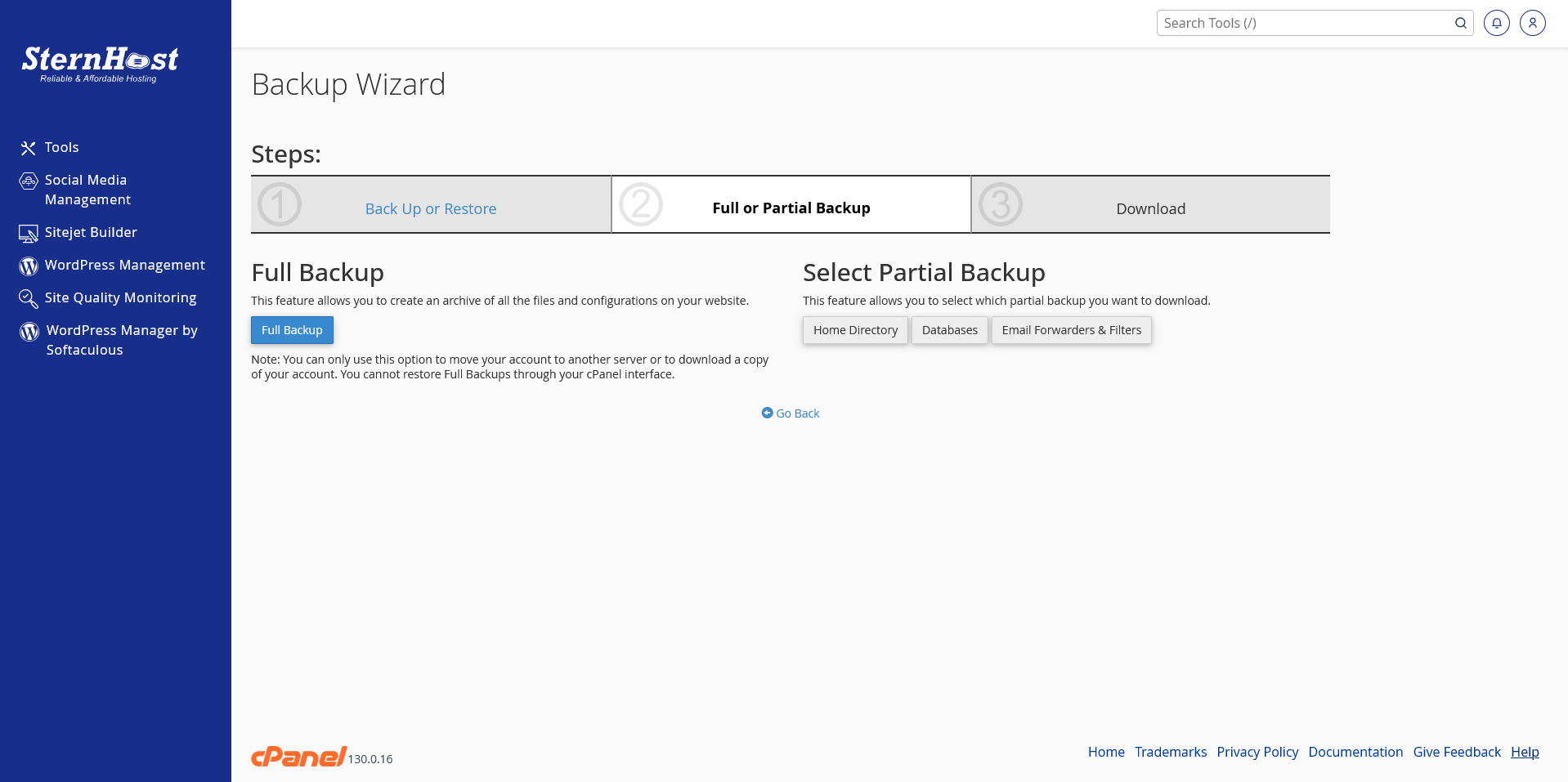
4. Choose the Type of Backup You will be presented with options for the scope of your backup:
-
Full Backup: This archives your entire account (Home Directory, MySQL Databases, Email Forwarders, and Filters). Recommended for total safety.
-
Partial Backup: Allows you to download only specific parts, like just the Home Directory or just MySQL Databases.
Click Full Backup to proceed.
5. Configure Backup Destination On the final screen, you need to choose where the backup file will be stored:
-
Backup Destination: By default, select Home Directory. This saves the file to your server space, where you can download it later.
-
Email Address: Enter your email address so cPanel can notify you when the backup generation is complete. This is helpful for large websites where the process might take several minutes.
Click Generate Backup.
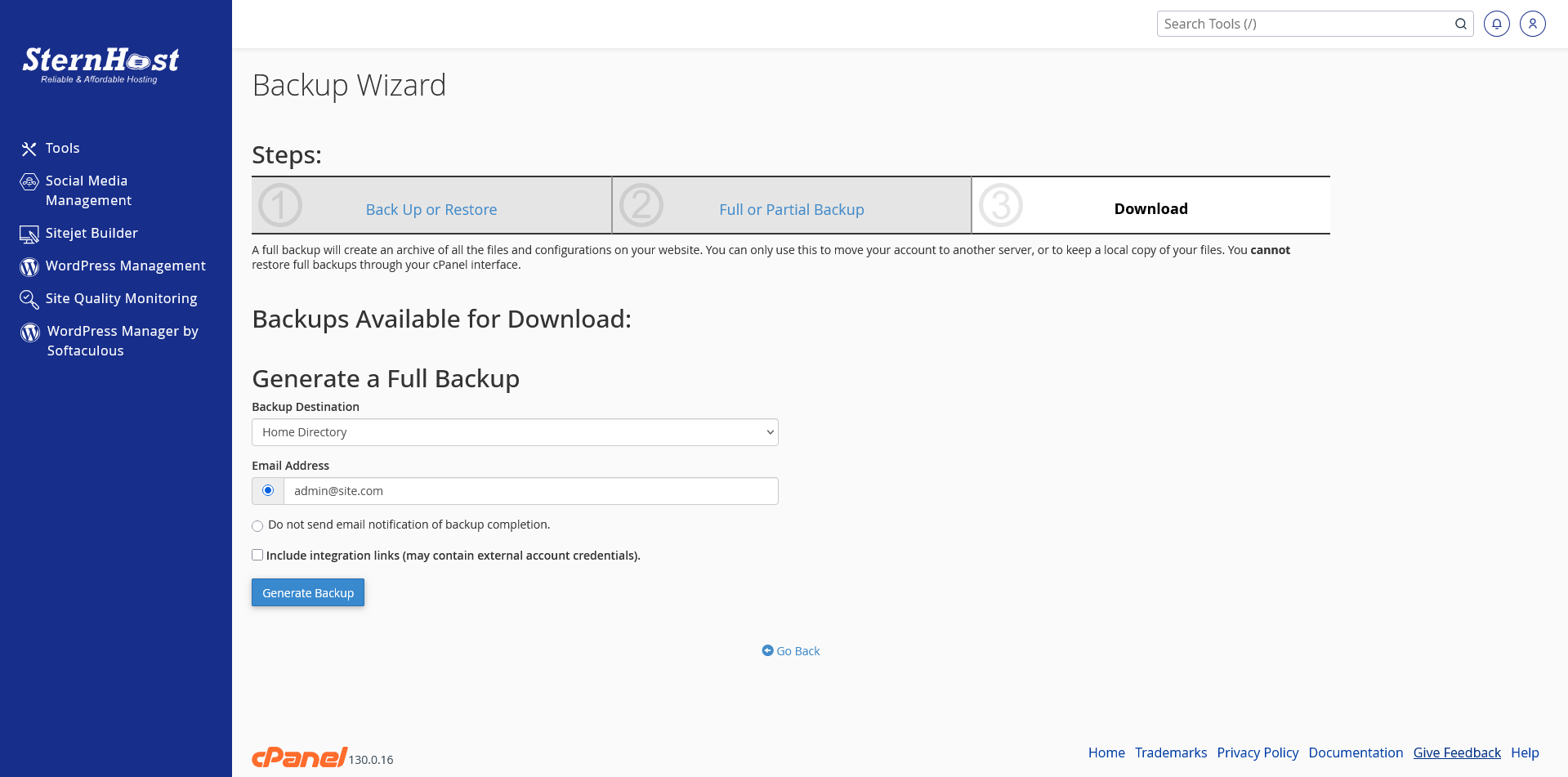
6. Download Your Backup Once you receive the email notification that the backup is complete:
-
Return to the Files section in cPanel and open File Manager.
-
Navigate to your Home Directory (usually the top-level folder,
/home/username). -
Look for a file named something like
backup-10.25.2025_12-00-00_username.tar.gz. -
Right-click the file and select Download to save it to your local computer.
Important Note on Restoring: A "Full Backup" file cannot be restored by you through the cPanel interface; it is primarily used for moving accounts or for server administrators to restore an entire account structure.
If you need to restore files yourself, we recommend using the Partial Backup feature (restoring the Home Directory or Database separately) or contacting Sternhost support for assistance with a Full Backup restoration.


