
Installing an SSL certificate is the first step in securing your website. However, even with an SSL installed, visitors might still access the unsecured HTTP version (e.g., http://yourdomain.com) instead of the secure HTTPS version (e.g., https://yourdomain.com). This guide shows you how to automatically redirect all visitors to the secure, encrypted version of your site.
Prerequisites
Before proceeding, please ensure that an SSL certificate is already installed and active on your domain. If you are using Sternhost’s free AutoSSL, this is likely already done. You can verify this by manually typing https://yourdomain.com in your browser. If the site loads with a padlock icon, you are ready to force the redirect.
Method 1: The "Domains" Interface (Recommended)
This is the safest and easiest method, as it does not require you to edit any code files.
-
Log in to cPanel Access your Sternhost cPanel dashboard.
-
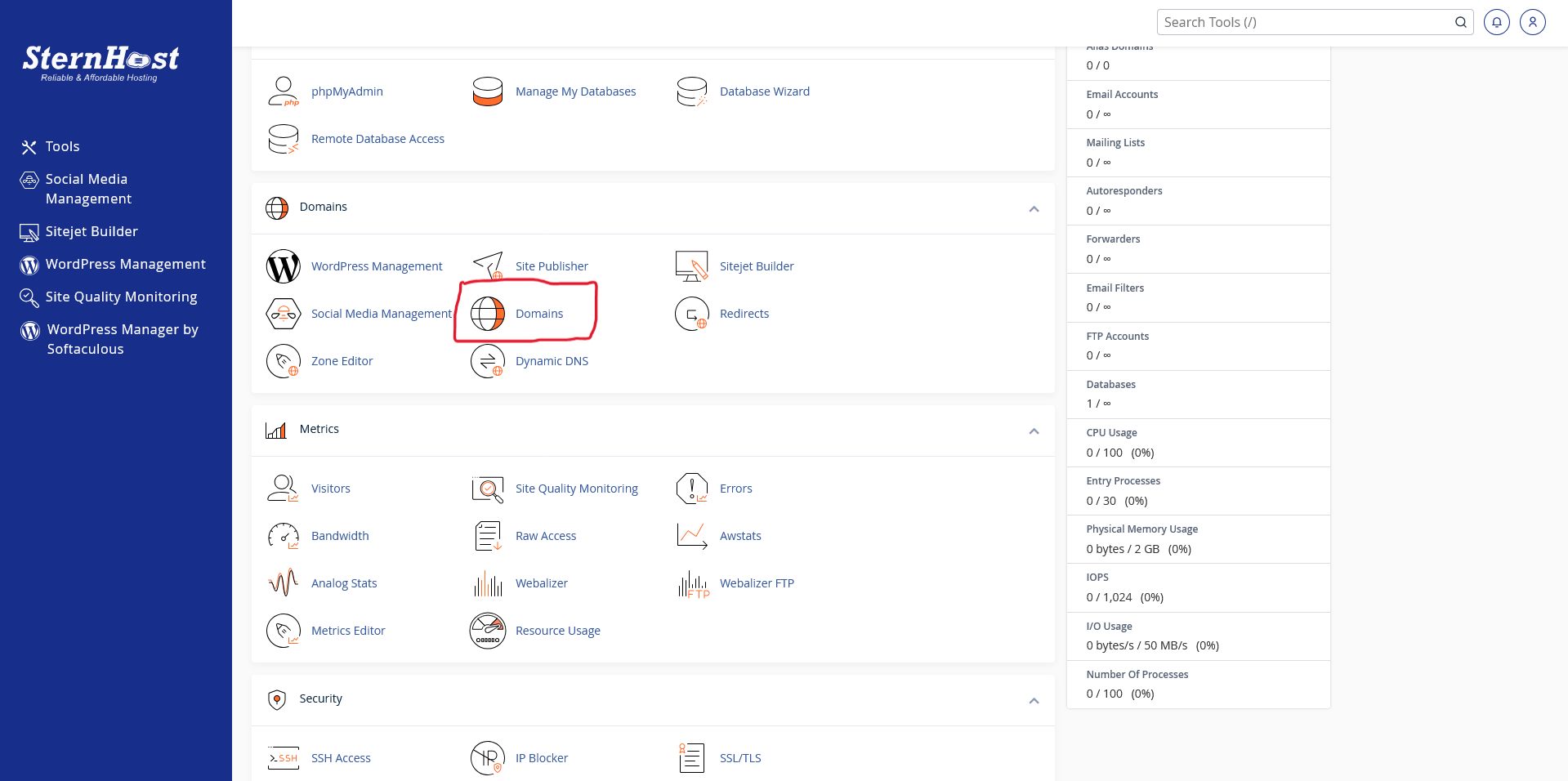
Navigate to Domains Scroll down to the Domains section and click on the Domains icon.
-
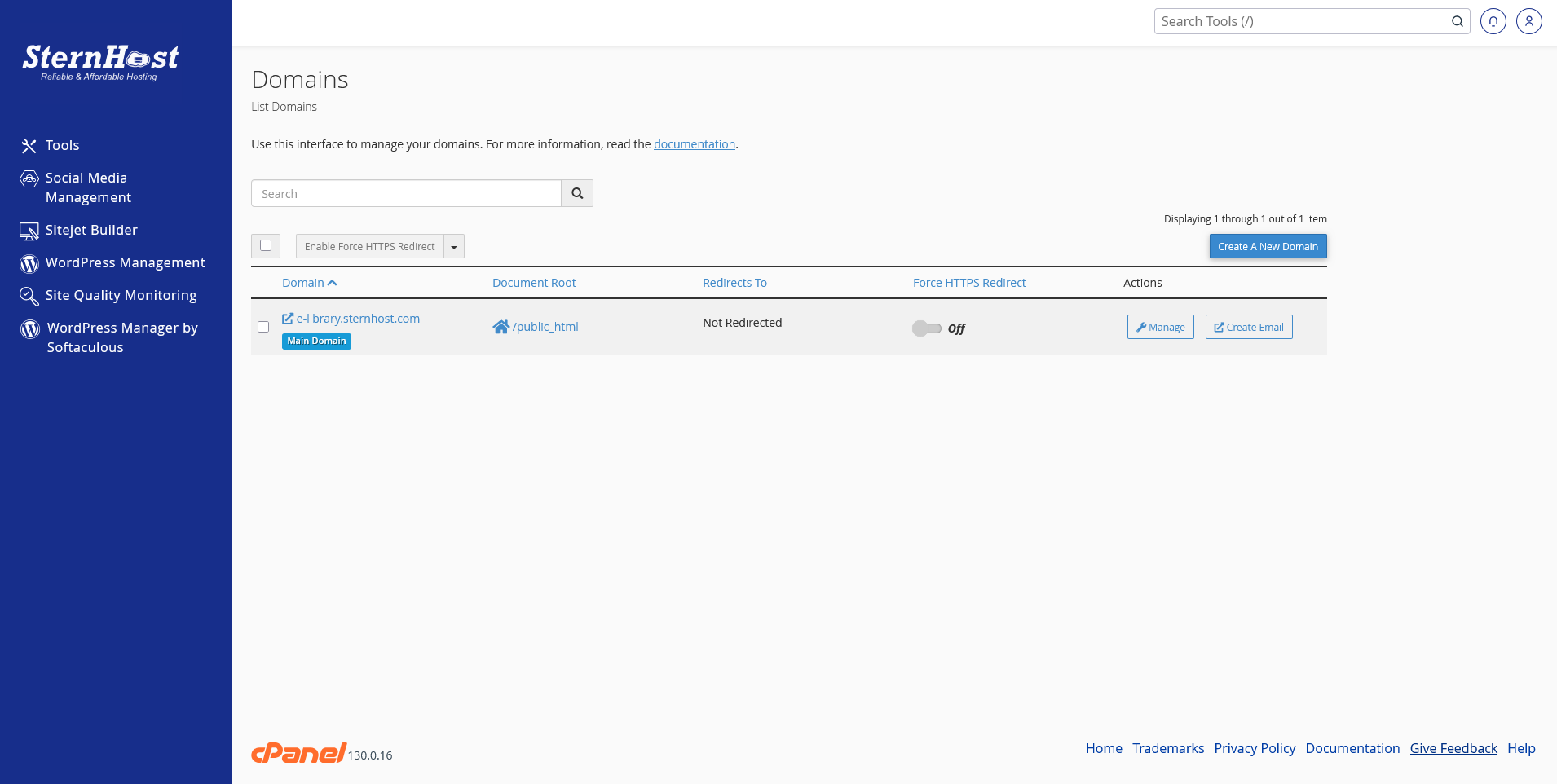
Locate Your Domain You will see a list of all domains associated with your account. Find the domain you wish to secure.
-
Toggle "Force HTTPS Redirect" Look for the column labeled Force HTTPS Redirect.
-
You will see a toggle switch next to your domain.
-
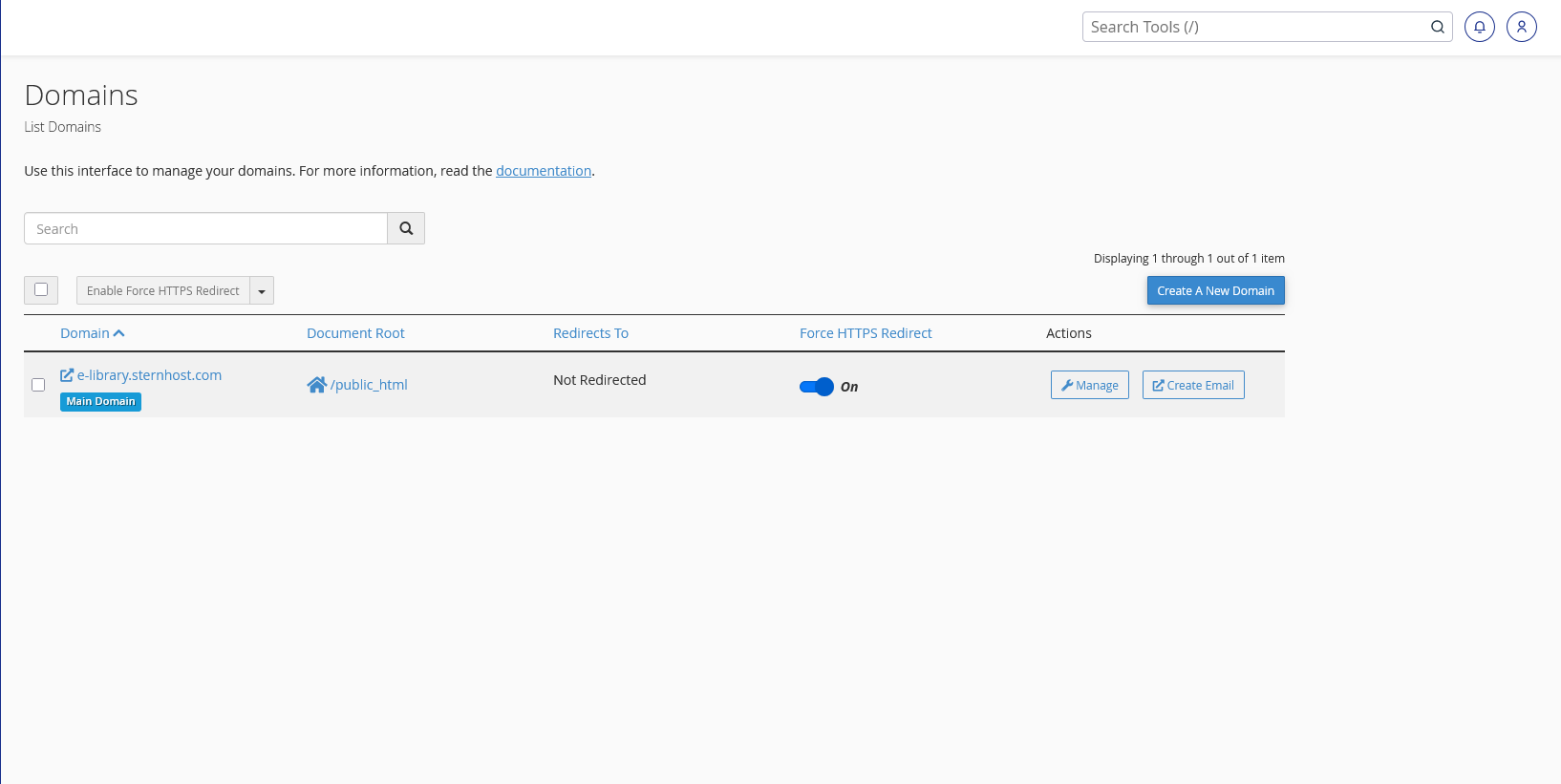
Click the switch to turn it On.
-
A success message will appear confirming the change.
-
Note: If the toggle is grayed out or unclickable, it usually means cPanel does not detect a valid SSL certificate yet. Please check your SSL status.


